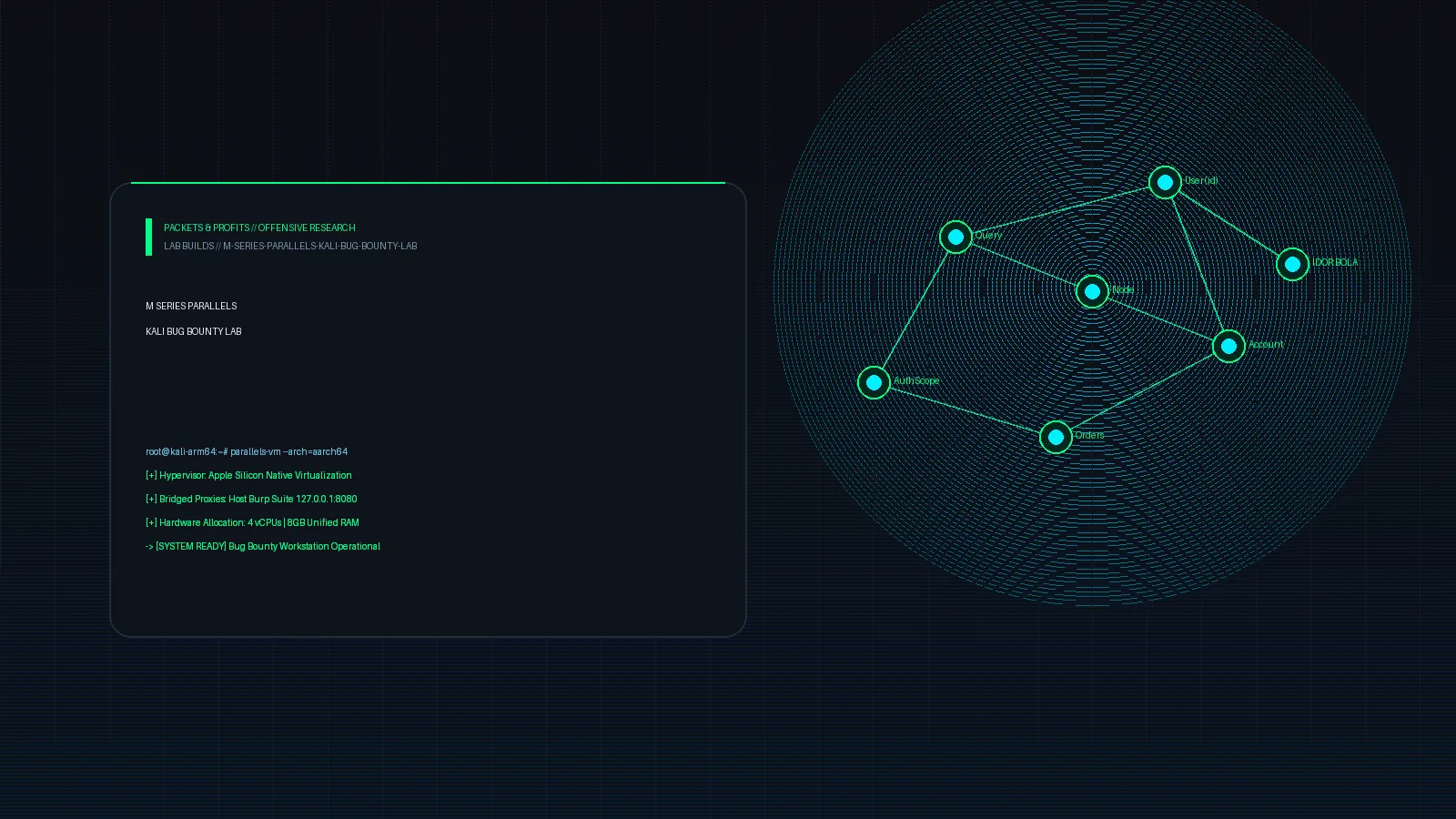
Apple Silicon (M1 through M4) completely transformed mobile computing for security researchers. The combination of unified memory architectures, hardware ProRes/Metal acceleration, and high efficiency cores makes an M-series MacBook the most potent portable attack workstation on the market.
However, moving offensive workflows from x86_64 to ARM64 architecture introduces distinct virtualization challenges. Running unoptimized emulation drains battery and introduces input lag, while fragmented toolchains can break binary compatibility during live engagements.
Here is the blueprint for engineering an optimized, battery-efficient bug bounty and penetration testing lab using Kali Linux ARM64 running on Parallels Desktop.
1. Architecture Breakdown: Why Native ARM64 Hypervisors Matter
When running security environments on Apple Silicon, choosing the right virtualization layer dictates your battery longevity, recon throughput, and GUI responsiveness.
| Hypervisor Layer | Type | Graphics Acceleration | Battery Impact | Verdict |
|---|---|---|---|---|
| Parallels Desktop (Native ARM64) | Type-2 Hypervisor (Hypervisor.framework) | Metal 3 GPU Acceleration | Minimal (~8-11 hrs active) | 🚀 Gold Standard: Zero GUI latency, seamless clipboard, dynamic memory pooling. |
| UTM / QEMU (Native ARM64) | Open Source (Hypervisor.framework) | Basic VirtIO / No Metal | Moderate (~5-7 hrs) | 🟡 Viable Free Option: Slower disk I/O and manual guest additions. |
| UTM (x86_64 Emulation) | TCG Binary Translation | Software Rendered | Severe (~2-3 hrs) | 🔴 Unusable for Pentesting: Extreme CPU throttle and heat. |
Native ARM64 virtualization executes guest instructions directly on the Apple Silicon cores with near-zero virtualization overhead.
Recommended Resource Allocation
On a standard 16GB or 32GB Unified Memory MacBook:
- vCPUs:
4 Cores(Allocates 2 Performance + 2 Efficiency cores automatically). - RAM:
8192 MB(Unified memory allows dynamic paging between macOS and the VM). - Graphics Memory:
Auto(Uses macOS Metal graphics backend). - Disk Type:
NVMe / Expandable(Pre-allocated at 64GB with dynamic expansion).
2. Step-by-Step Kali ARM64 Deployment
Step 1: Downloading the ARM64 Installer
Always grab the Kali Linux ARM64 (Apple Silicon) installer ISO directly from the official Kali repository rather than legacy live images:
- Architecture:
aarch64/arm64
Step 2: Provisioning with Parallels Tools
During initial setup, install the driverless Parallels guest kernel modules. This enables hardware accelerated desktop scaling, bidirectional clipboard synchronization, and automounted host directories.
# Update kernel headers and install guest utilities inside Kali
sudo apt update && sudo apt install -y dkms linux-headers-$(uname -r)
sudo mount /dev/cdrom /media/cdrom
sudo /media/cdrom/install --install-unattended
sudo reboot
Once rebooted, your macOS home directory is directly accessible inside the VM under /media/psf/Home/, eliminating the need to transfer wordlists, notes, and targets over SFTP.
💡 Workflow Optimization: If you require continuous background scanning without battery penalty or display sleep interruptions while moving between client sites, deploying your VM through Parallels Desktop allows native Coherence mode and background headless execution.
3. Dual-Proxy Network Architecture (Host Burp + Guest Recon)
The optimal setup for web bounty work leverages the native macOS Burp Suite instance for manual proxying and browser inspection, while routing automated Kali CLI tools (httpx, ffuf, nuclei) into the host Burp history.
┌─────────────────────────────────────────────────────────────┐
│                       macOS HOST                            │
│  [ Burp Suite Pro ] <── Binds 10.211.55.2:8080 (Shared Host)│
└──────────────────────────────▲──────────────────────────────┘
                               │
               Shared Host-Only Virtual Interface
                               │
┌──────────────────────────────┴──────────────────────────────┐
│                    KALI LINUX GUEST (ARM64)                 │
│  [ ffuf / katana / nuclei ] ──► ALL_PROXY=http://10.211.55.2│
└─────────────────────────────────────────────────────────────┘
1. Configure Burp Suite on macOS
In Burp Suite (Proxy -> Proxy settings -> Proxy listeners):
- Bind to port:
8080 - Bind to address:
Specific address-> Select10.211.55.2(Parallels Shared Networking adapter).
2. Configure Kali Guest Shell Routing
In your Kali ~/.zshrc, add proxy toggles to pipe fuzzing or recon traffic straight into your host Burp target map:
# Add to ~/.zshrc on Kali VM
export HOST_BURP="http://10.211.55.2:8080"

# Enable / Disable Burp Upstream
alias proxy-on="export HTTP_PROXY=$HOST_BURP HTTPS_PROXY=$HOST_BURP all_proxy=$HOST_BURP && echo '[+] Proxy set to Host Burp ($HOST_BURP)'"
alias proxy-off="unset HTTP_PROXY HTTPS_PROXY all_proxy && echo '[-] Upstream proxy disabled.'"

# Custom fuzzing wrapper
alias burpfuzz='ffuf -x $HOST_BURP'
4. Handling ARM64 Toolchain & x86 Binary Compatibility
The vast majority of modern recon and offensive security tools are written in Go or Python and compile natively for arm64:
# Compiling native Go offensive tools on ARM64
export CGO_ENABLED=0
export GOARCH=arm64
go install -v github.com/projectdiscovery/subfinder/v2/cmd/subfinder@latest
go install -v github.com/projectdiscovery/httpx/cmd/httpx@latest
go install -v github.com/projectdiscovery/nuclei/v3/cmd/nuclei@latest
go install -v github.com/ffuf/ffuf/v2@latest
Bridging Legacy x86_64 Binaries
When encountering older proprietary exploit binaries or CTF reversing tasks distributed strictly for x86_64, use user-mode QEMU or Box64 translation:
# Enable multiarch and install emulation layers
sudo dpkg --add-architecture amd64
sudo apt update
sudo apt install -y qemu-user-static binfmt-support libc6:amd64

# Execute x86_64 Linux ELF seamlessly on ARM64
./target_x86_binary
5. Instant Snapshot & Disaster Recovery Workflow
During active engagements, installing bleeding-edge PoCs, malicious samples, or untested dependency trees can destabilize your environment. Manage snapshots via the macOS terminal using the prlctl CLI:
# List active virtual machines
prlctl list -a

# Create a clean baseline snapshot before testing an exploit
prlctl snapshot "Kali Linux" --name "Baseline-Clean-2026" --description "Pre-engagement stable baseline"

# Instant rollback after completing testing
prlctl snapshot-switch "Kali Linux" --name "Baseline-Clean-2026"
Methodology Checklist: The 10-Minute Workstation Audit
[+] 1. Virtualization & Kernel Pre-Flight
    ├── Verify ARM64 native architecture (uname -m returns aarch64).
    ├── Confirm Metal hardware acceleration enabled in display adapters.
    └── Validate Parallels Shared Folders mounted at /media/psf.

[+] 2. Proxy & Network Verification
    ├── Test loopback connectivity to host Burp listener (curl -x 10.211.55.2:8080 http://burp).
    ├── Verify DNS resolution through host interface.
    └── Confirm CA certificates installed in Kali trust store (/usr/local/share/ca-certificates/).

[+] 3. Toolchain & Snapshot Hygiene
    ├── Assert Go bin paths (~/go/bin) exported in ~/.zshrc.
    ├── Verify binfmt_misc handles transparent x86_64 emulation.
    └── Capture clean engagement snapshot prior to firing active scanners.
Summary & Recommendations
Transitioning to Apple Silicon for penetration testing does not require sacrificing performance or battery life. By coupling the power efficiency of M-series hardware with native ARM64 virtualization through Parallels Desktop, you get a workstation capable of handling 24/7 scanning, fuzzing, and manual testing on a single charge.